11. The DocuShare ODMA Client
The Open Document Management API (ODMA) Client works in conjunction with the Windows Client and Explorer to make managing your documents easier. With the DocuShare ODMA interface, you can access DocuShare from within the editor application you use. In other words, the ODMA Client allows DocuShare to be one of the locations from which you can open files and to which you can save files.
|
Opening a DocuShare File Using the ODMA Client |
The ODMA Client also allows you to open a DocuShare file through an editor application. Using Microsoft Word as an example editor program, follow the steps below.
- Choose File à
Open in Microsoft Word and the Open DocuShare Document? dialog box will appear.
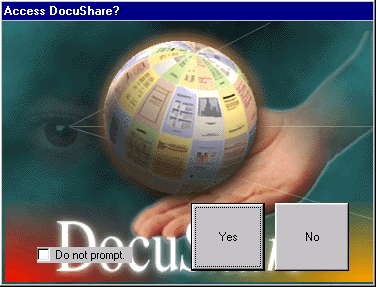
- If you choose No, the standard Microsoft Word Open dialog box appears, letting you browse Explorer to select the file you wish to open. If you choose Yes, a dialog box for DocuShare opens as shown below:
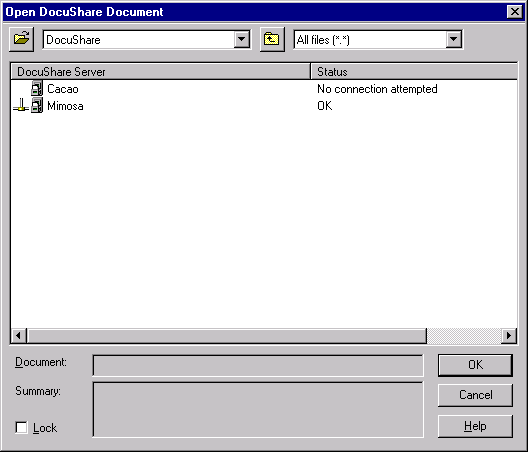
- Select the DocuShare server you wish to browse. If you have only one server, select that one. The collections on that DocuShare server will then appear in the next dialog box. If you are not already logged in, you will have to enter your User Name and password when prompted.
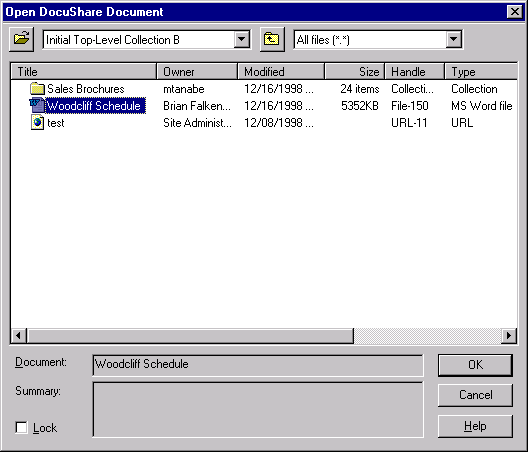
- Browse through the collections/folders, until you find the folder you want to edit, and double-click the file to open it. You have now checked the file out of DocuShare. Think of it as borrowing the file.
- If you checked the Lock checkmark, DocuShare will lock the file and load it into Microsoft Word. You can then edit the file as you wish.
Note: Remember, when editing a DocuShare file in an editor application (e.g., Microsoft Word), you are not actually editing the file on-line in DocuShare. Therefore, using the Save command while editing a file does not save the file back to DocuShare; Save will only save the file to your local computer. You must use Close or Save as to upload the file back to DocuShare. See the next section for more detail.
You can also open a DocuShare file through Explorer by double-clicking on
the file (or selecting Check Out from the right-click menu), and thereby launching the editor application from Explorer.
|
Checking In an Edited File to DocuShare |
When you are finished editing a document using the ODMA Client, you may save the file locally on your computer or check the updated file back into DocuShare. Think of checking the file in as returning it. Save alone will not check the file back in to DocuShare. Follow the steps below to check in an edited file to DocuShare.
- Select Close to close the edited file.
- You will be prompted as to whether you want to save changes. Choose Yes (unless you do not want to save changes). The Check In Updated Document dialog box appears:
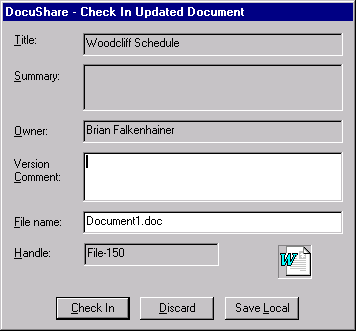
- Click on Check In. Enter any version comments you wish in the corresponding field.
Note: You can choose the Save As option to give the updated file a new name on DocuShare, or you can cancel.
- You will see an updating dialog box appear as the document gets uploaded to the DocuShare server. The updated file is now checked back in to DocuShare with any edits you made.
Copyright © 1997, 1998, 1999 by Xerox Corporation. All Xerox product names mentioned in this document are trademarks of Xerox Corporation. All other product names mentioned in this
document are trademarks of their respective companies.


