|
 |
 |
| Table of Contents | Searching in DocuShare | DocuShare ODMA Client |
| DocuShare User's Guide |
Overview
Mounting a DocuShare Server on Windows Explorer
Removing a DocuShare Server
Accessing a Mounted DocuShare Server via Windows Explorer
Viewing DocuShare Files on the Windows Client
New Function Buttons on the Windows Client
New Menus in the Windows Client
Working with DocuShare Files on the Windows Client
Adding Files or Folders
Searching DocuShare on the Windows Client
Copying Files or Folders
Deleting Files or Folders
Versioning and Locking Files
Configuring Options
|
|
|
| Table of Contents | Searching in DocuShare | DocuShare ODMA Client |
|
Overview |
The Windows Client allows you to work with a DocuShare repository of files (or several) from within Windows Explorer. Once you mount the server and log in, DocuShare will appear as a separate drive in the familiar Explorer tree environment. When you click on the DocuShare drive from Windows, DocuShare collections appear as folders, and files appear as the appropriate icons. You can bypass normal upload procedures and copy files to a DocuShare collection from your local or network drives, or you can pull files from DocuShare directly to your computer, avoiding the download step. Simply select the file (or files) you want and drag it to the folder to which you wish to upload or download. It works the same as when you drag files around within your computer or to and from network drives.
|
Mounting a DocuShare Server on Windows Explorer |
The DocuShare Windows Client must be installed on your computer before you can mount a DocuShare server on Windows Explorer. See Installing the Windows Client, Chapter 1. Once you have installed the Windows Client, click the DocuShare icon as it appears in Windows Explorer.
The first time you click on the DocuShare icon, a window will appear asking if you want to map an initial DocuShare server. To map additional servers, under the Explorer Tools Menu, select Map DocuShare Server. In both cases, the Step 1 dialog box appears.
At this point, you will see the new folder name appear in Windows Explorer under the DocuShare icon.
To remove a DocuShare server from the DocuShare Windows Client, follow the steps below:
The server you selected for removal should no longer appear on the Explorer interface. If the server does still appear, select Refresh.
|
Accessing a Mounted DocuShare server via Windows Explorer |
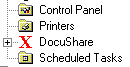
To access a mounted DocuShare server via Windows, double click on the DocuShare icon which appears in your Windows Explorer tree structure. See example below:
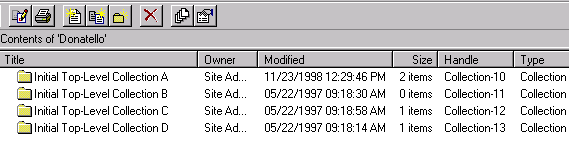
At this point, you can point and click to open DocuShare collections on your DocuShare site as if they were folders on one of your local or network drives.
|
Viewing and Editing Files with the DocuShare Windows Client |
Viewing and editing DocuShare files on the Windows Client is similar to viewing and editing files on one of your local drives in Explorer. Collections appear as Explorer folders that may contain files, URLs, calendars, bulletin boards or other collections/folders. Files will appear with their corresponding icons (e.g.,  for Microsoft Word files).
To open a DocuShare collection/folder in the Windows Client, simply double click the folder with your mouse. The contents of that collection/folder will then appear in the right-hand side of the Explorer Interface. Remember that permissions still apply, so depending on your access, you may not be able to view restricted collections or folders. See Chapter 3, DocuShare Permissions for further information.
To open a DocuShare file, simply double click on the file name. There are two ways to "open" a DocuShare file. The default response to double clicking on the file is to open the corresponding application with the file set to read only. This is called browse mode. Alternatively, you may open the file for editing and save it back to DocuShare when you are done. This is called check out. When you check out a file, the original copy on the DocuShare server is locked while you edit the file so that others will not be able to create new versions while you are editing the current version. Both options are available from the menu that appears when you click your right mouse button on the file name. Which action is your default in response to a double click is configurable from the DocuShare settings screen (see Configuring Options).
The DocuShare Windows Client supports the following applications for check out:
Other applications may or may not correctly check out of DocuShare or save back to DocuShare. See Chapter Troubleshooting DocuShare.
|
New Function Buttons on the Windows Client |
Most of the function buttons on the Windows Client are the same as the function buttons in Explorer, but there are a few differences. The table below gives a description of the function buttons in the Windows Client.
|
|
Up one Level: Takes you one level higher in the tree structure. It works the same for DocuShare as it does for Explorer. |
|
|
Large Icons: Displays large icons. It works the same for DocuShare as it does for Explorer. |
|
|
Small Icons: Displays small icons. It works the same for DocuShare as it does for Explorer. |
|
|
List: Displays icons in a list. It works the same for DocuShare as it does for Explorer. |
|
|
Details: Displays icons in a list with details about the files. It works the same for DocuShare as it does for Explorer. |
|
|
Edit: Opens an edit program for the file. The specific response depends upon the edit program. For supported applications, DocuShare will open the application for editing and offer to save the editing file back to the same DocuShare location when you close the window. For unsupported applications, DocuShare will open the file in read-only mode. See the Editor Support section for more details. It works the same for DocuShare as it does for Explorer, but you will be offered the ODMA option (see ODMA Client). |
|
|
Print: Prints the current file. It works the same for DocuShare as it does for Explorer. |
|
|
Add Document: Adds a document to the current collection/folder. This function button is unique to the DocuShare Windows Client. |
|
|
Create New Version: Creates a new version of the file with which you are working. This function button is unique to the DocuShare Windows Client. |
|
|
Create New Collection: Creates a new collection within the open collection. This function button is unique to the DocuShare Windows Client. |
|
|
Delete: Deletes the selected file. It works the same for DocuShare as it does for Explorer, except that you must have Manager access to delete a file. |
|
|
View Version History: Shows you the version history of the current document. This function button is unique to the DocuShare Windows Client. |
|
|
View Properties: Displays the properties of the selected file. It works essentially the same for DocuShare as it does for Explorer. |
|
|
Undo: Undoes the last action. This Windows Explorer function is not supported in the DocuShare Windows Client. |
|
|
Map Server. Brings up the sequence of screens to map to another DocuShare server. This button only appears when the Xerox DocuShare drive is selected. |
|
|
Disconnect Server. Allows you to remove one of the currently mapped DocuShare servers. This button only appears when the Xerox DocuShare drive is selected. |
|
New Menus in the Windows Client |
In addition to the Explorer function buttons, you will notice various pop-up menus when you right click your mouse within the Windows Client. As with the function buttons, these menus closely resemble the standard Windows Explorer right-click menus with a few differences.
|
|
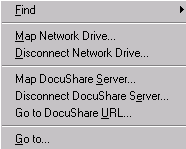
Whenever DocuShare content is selected, the Explorer Tools menu contains an additional section for three DocuShare-specific commands. Map DocuShare Server… allows you to connect to additional DocuShare sites. Disconnect DocuShare Server… allows you to remove currently mapped DocuShare sites. This is also useful if you want to login as a different user. Go to DocuShare URL… brings up a window in which you can enter a DocuShare location directly. The window offers a partial URL as a hint that you must complete. |
|
|
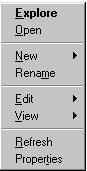
This menu appears if you right click your mouse in the All Folders section (i.e., left side) of the Windows Client. Functions are an abbreviated list of those found in Windows Explorer. New allows you to create a new folder (i.e., collection) or a new document. |
|
|
This menu appears if you right click your mouse in the Folder Contents section (i.e., right side) of the Windows Client. Functions are mostly the same as in Windows Explorer. The DocuShare functions are listed below. View lets you choose among the following: large icons, small icons, list, details, publish view. Refresh reloads the page from the DocuShare server.
|
|
|
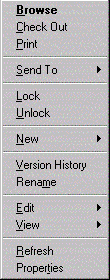
This menu appears if you right click your mouse on a file in the Folder Contents section (i.e., right side) of the Windows Client. Functions are a mix of Explorer and DocuShare. The DocuShare functions are listed below. Browse opens the selected file.Check Out opens the selected file and locks it so others cannot use or change this file while you have it active. Lock locks the file. Unlock unlocks the file. New creates a new version of the file using the existing file. Version History lets you view the version history of the file. Rename lets you rename the file. This will change the file’s Title property on the DocuShare server. View lets you choose among the following: large icons, small icons, list, details, publish view. Refresh reloads the page from the DocuShare server. Properties displays a window for viewing and editing the object’s properties. |
|
Working with DocuShare Files on the Windows Client |
Working with DocuShare files on the Windows Client is much the same as working with regular files from your local or network drives on Explorer. Using standard Explorer drag and drop operations, you can copy files to a DocuShare collection from your local or network drives, or you can copy files from DocuShare directly to your computer. You can also copy and move DocuShare files from folder to folder within the DocuShare using drag and drop operations. Other standard Explorer features are available as well, such as Rename, Delete, and Properties.
To add (i.e., upload) files from a local or network drive to a DocuShare folder (i.e., collection) on the Windows Client, follow the steps below:
To copy files from a DocuShare folder to a folder on your local or network drives, select the file(s) you wish to copy with your mouse and drag it to the desired local or network folder.
Note: The Confirm Item Copy screen does not pop up for this type of action (i.e., a download).
Use the same select and drag procedure as above to copy files from one DocuShare folder (i.e., collection) to another. The Confirm Item Copy screen will pop up if you copy files from one DocuShare server to another, but otherwise the process is the same. Remember that you must have Write permission to add files to a DocuShare collection even if the files are coming from another DocuShare collection or server.
The above process works the same for copying folders from a DocuShare folder on the Windows Client to a local or network drive. All contents of the added folder will be included.To delete files from DocuShare on the Windows Client, follow the steps below.
Versioning and Locking Files basically works the same way as it does in the web version; see Chapter 5, DocuShare Files for in-depth information. Follow the process below to create a new version of a file on the DocuShare Windows Client.
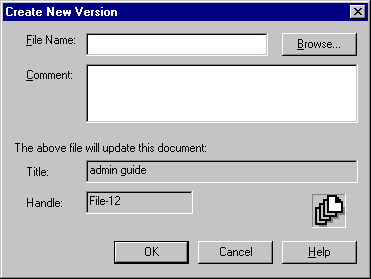
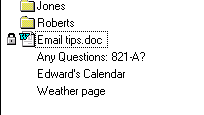 You can also Checkout a document by selecting the document with a right mouse click and choosing Checkout from the menu. This automatically opens the file and locks it so you can work on it. See Chapter 11, The DocuShare ODMA Client for further information.
To unlock a file on the DocuShare Windows Client, select the file by right-clicking it and choose Unlock from the menu that appears. The padlock symbol will disappear.
You can also Checkout a document by selecting the document with a right mouse click and choosing Checkout from the menu. This automatically opens the file and locks it so you can work on it. See Chapter 11, The DocuShare ODMA Client for further information.
To unlock a file on the DocuShare Windows Client, select the file by right-clicking it and choose Unlock from the menu that appears. The padlock symbol will disappear.
|
Searching DocuShare on the Windows Client |
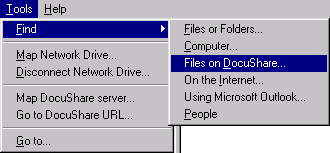
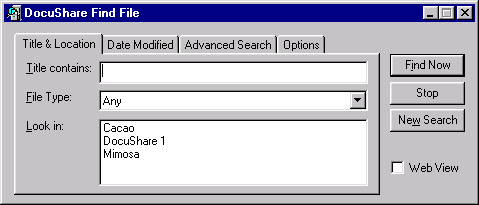
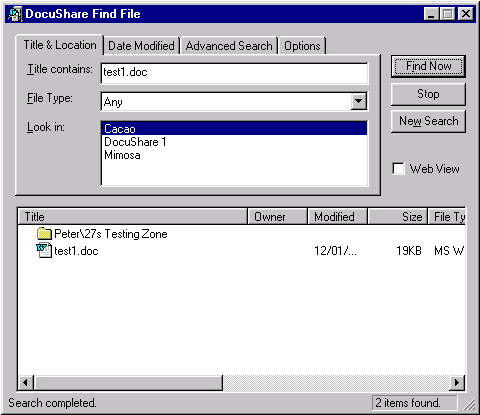
There are several options on the Windows Client that you can configure. To access the options, right click on the red Xerox  icon in the toolbar of your Windows Explorer interface (On most machines, the will be located at the bottom right corner – the Start button is usually in the bottom left corner.) When you right click on the icon, a short menu appears:
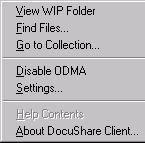
Choose Settings.
Note: Disable ODMA from this menu will turn off the ODMA option, and View WIP Folder shows you information about the Work in Progress (if there is one). About DsClient gives you license and version information on the DocuShare Windows Client.
After you select Settings, the DocuShare Client Settings dialog box appears.
Note: The options shown as selected in the following examples are the
DocuShare Windows Client default options. Your Site Administrator can help
you figure out the best settings for your machine and requirements. The
DocuShare Settings dialog offers various options regarding DSClient’s behavior.
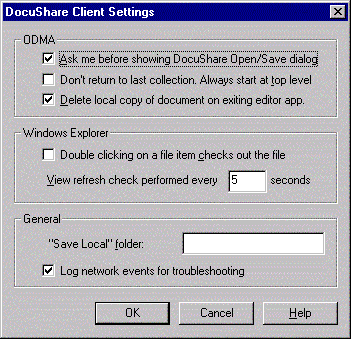
ODMA Settings
Windows Explorer
General
|
|
|
| Table of Contents | Searching in DocuShare | DocuShare ODMA Client |