 |
 |
 |
| Table of Contents | Becoming a DocuShare User | DocuShare Collections |
| DocuShare User's Guide |
Overview of Object Permissions
Viewing and Editing DocuShare Object Permissions
Adding Users and Groups to an Object's Access List
Unifying DocuShare Object Permissions
Changing an Object's Owner
Working with Write-Only Objects
|
|
|
| Table of Contents | Becoming a DocuShare User | DocuShare Collections |
Every DocuShare object has a set of associated permissions called its Access Control List. Permissions are the authorization level that a defined set of users or groups has to view, delete or modify a DocuShare object. These object permissions are not assigned or maintained by the Site Administrator; rather, they are maintained by the owner of the object or any user with Manager level access to the object.
There are three permission categories:
The user who initially creates an object in the DocuShare repository, known as the owner, receives automatic Manager level permission after creating the object. The owner can now assign which users and groups can access the object and what level of access they have to this object. Permissions are assigned at the individual object level.
You specify permissions using one or more user names, group names, or both. When you are working with more than a few individuals or objects, user groups can make creating and maintaining access permission lists easier. A user group is a named set of users and/or groups. See Creating a User Group in Chapter 2 for more information on creating a user group in DocuShare.
Permissions work with your logged in status on DocuShare. If you are not logged in to DocuShare, you are considered a Guest and the user name Guest appears on each page. Guests cannot add objects or perform any edit operations.
Within access permissions, the user Anyone represents anyone accessing a DocuShare object, either a logged-in user or a guest. Granting write access to Anyone gives any logged in user write permission; Guest is always denied edit capability. For example, if you give Reader and Writer level access to Anyone for a collection, then user Mary Smith can view the contents of the collection, even if she is not logged in (i.e., a guest). However, if Mary Smith wants to add an object to that collection, she must log in. If she is not logged in, when she attempts to add that object, DocuShare will present a warning message stating that Guest cannot perform that operation. It will also present a login box to allow the user to log in and complete the operation. The user will only be able to complete adding the object if they have Writer access permissions to the object.
Object permissions can be inherited from higher-level parent or container objects. Collections, Calendars and Bulletin Boards are considered container objects because they hold other objects. Calendars hold Events, Bulletin Boards hold Bulletins, and Collections hold every other type of DocuShare object, including other collections. By initially setting the access permissions for a higher level container object, any object subsequently added to that container object automatically inherits those higher-level permissions from the container object.
For example, if you create a collection and give user Joe Smith both Reader and Writer access to the collection, then any object (file, Collection, Calendar or Bulletin Board) subsequently added to that collection automatically contains Reader and Writer access permissions for user Joe Smith. Inheriting permissions from container objects can be a very powerful tool to quickly set access permissions for new DocuShare objects.
To view the current permissions on a DocuShare object, click on the Services link for the object, then click Permissions in the Edit pull-down menu. If you have Manager access permissions to the object, you see the Edit Permissions page (shown below). Otherwise, you see the View Permissions page, a read-only version of the same information. You must be logged in to DocuShare to edit permissions in any manner.
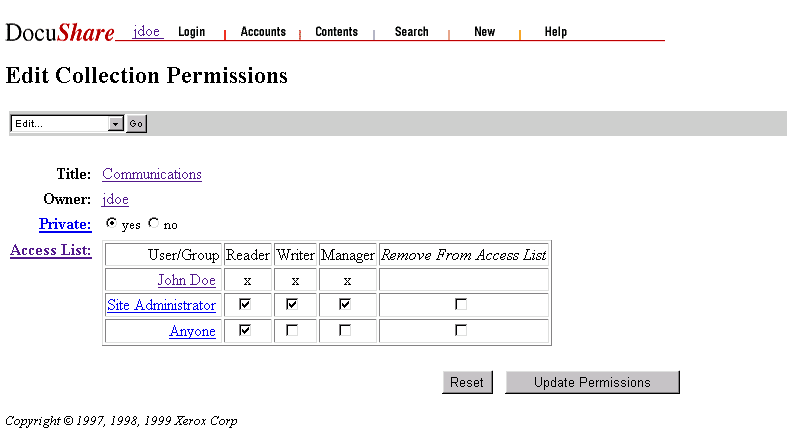
The Permissions page has the following properties:
Property |
Description |
|
Title |
Displays the title or name of the DocuShare object. |
|
Owner |
Displays the current owner of the DocuShare object. |
|
Private |
Specifies whether the title of the DocuShare object will appear in a search result. Yes allows only users with Reader access to see the object in a search results list. No lists the object's title, summary, and owner information in the search results list, regardless of the user's access rights. |
|
Access List |
Lists users and/or groups that have access to the object and the associated permissions:
|
To edit the permissions of an object in DocuShare:
To add users and groups to an object's access list:
At first, the users and groups that are added to the access list appear without new access rights. Follow the steps in the previous section to grant specific access rights to the new users or groups.
Occasionally, you may change the permissions for a higher-level container object (Collection, Calendar, and Bulletin Board). Perhaps you may want to add a new user or extend wider access to another user or group. However, the objects within that container object will not reflect those new permissions. You can edit the permissions for each object individually, but that process can be time consuming and error prone, especially if there are a large number of objects within that container object. DocuShare provides the Unify command to make this process easier.
Edit the permissions on the higher level DocuShare container object, then select Unify to set the permissions for all objects within that higher level container object to inherit the revised permission settings. However, if you do not have Manager level access to an object, Unify will not change permissions for that object. DocuShare will list those objects as it performs the Unify command. Permissions for these objects must still be edited individually by someone with Manager access permission.
To unify object permissions:
Users with Manager access to an object can change the object's owner at any time. The default owner is the user who initially created the object in DocuShare. While all Managers of an object have the same permissions as its owner, it is the owner's name that is shown whenever the object is displayed or an unauthorized access is attempted.
To change an object's owner:
Ownership of the object is assigned to the new owner. The previous owner is added to the object's access list and is automatically given Reader, Writer and Manager access permissions.
Because Reader and Writer permissions are independent, DocuShare offers the ability to grant write-only access to objects. The primary use of this feature is to create container objects that allow users to add content while preventing them from seeing what other users have added. For example, a "Suggestions" bulletin board can be created that allows users to privately add their suggestions for improving the company. This bulletin board could even be made anonymous by granting write permission only to a special anonymous account to which submitters must log in prior to making their suggestions.
Because users with write-only access to an object cannot open it or even see it, they are unable to reach the object’s regular Add menu. Submission to write-only objects requires going directly to the desired edit form. For example, to add a new bulletin to a write-only bulletin board called BulletinBoard-16, a user must go to:
This link can be made available to users as a DocuShare URL, or as a link on a custom web page. For blind submission to collections, the link is similar. For example, to add a file to Collection-47, users would go to:
|
|
|
| Table of Contents | Becoming a DocuShare User | DocuShare Collections |