 |
 |
 |
| Table of Contents | Getting Started | DocuShare Permissions |
| DocuShare User's Guide |
OverviewDocuShare Objects
Navigating a DocuShare Site
Object ServicesDocuShare Home Page
DocuShare Users
DocuShare Collection Pages
What's New
DocuShare Navigation BarUser Accounts
DocuShare Groups
Viewing User Properties
Editing User Properties
Changing Your User name or PasswordCreating a User Group
Viewing Group Properties
Editing Group Properties
Change Owner of a Group
Mailing to all Group Members
Deleting a User Group
|
|
|
| Table of Contents | Getting Started | DocuShare Permissions |
| Overview |
DocuShare is a web-based document management system that allows users to store, access and manage information and files in a community-maintainedTM repository using a standard web browser or Microsoft Windows Explorer. Anyone who can access the server can download existing files and upload new files. They can also create and manage storage areas, group calendars, bulletin boards and other tools to facilitate group communications over a network.
A DocuShare site is composed of objects that are presented in the familiar model of nested directories or folders. These folders are called collections. Any file, collection, calendar or bulletin board created in DocuShare is a unique object with an object identifier called a handle. That unique identifier stays with the object forever, even when you edit or move it. You will find in time that this comes in handy when setting bookmarks or sending people pointers to your information.
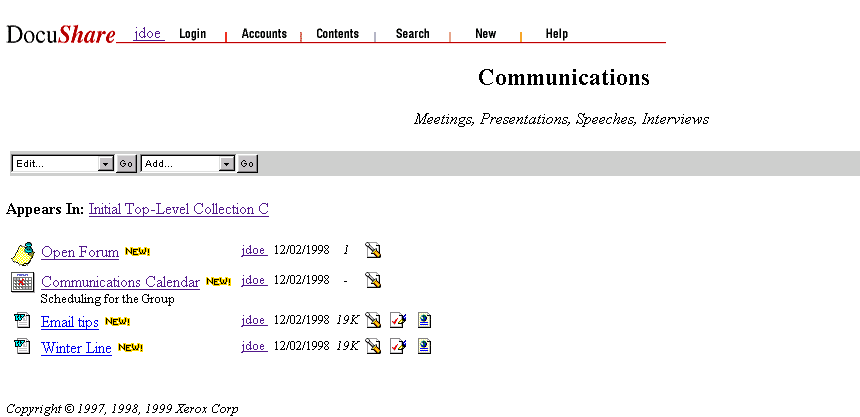
A typical collection page in default configuration, entitled "Communications", is shown above. Your site administrator has the ability to customize the DocuShare site and configuration significantly, so remember, appearance and/or behavior of the site could be vastly different depending on what is required or desired by users.
Since it is impractical to cover all possible customizations, this user guide will focus on general usage and supply default configuration examples. If your DocuShare site is radically customized, your site administrator probably has a personalized user guide describing functionality of the tailor-made site.
In the default configuration (and most customizations), DocuShare pages will have a navigation bar at the top to provide access to general DocuShare utilities such as accounts, search and help. Below that is the Collection's title and summary. Below the title and summary are the pull-down menus, which offer various options. The Edit Menu allows you to view and/or change certain aspects of the collection, or even delete the collection (Writer or Manager access is required for some options). The Add Menu allows you to add content to the collection: files, URLs, bulletin boards, calendars, etc. (Writer access is required to add content.)
Below the pull-down menus is the collection's Appears In list, which provides pointers to all collections in which this collection appears. Any DocuShare object may appear in more than one location at the same time. Finally, there is a list of the collection's content, which may be other collections, or files, URLs, calendars and bulletin boards.
DocuShare pages contain a variety of links that make navigating through the site easy. A few common usage tips include:
There are other navigation methods, such as a table-of-contents view and an extensive search utility. No matter which combination of navigational tools you use, you will find your way easily around a DocuShare site.
As a document management and sharing environment, DocuShare provides a rich set of services and utilities for defining, editing and tracking File objects. You can store and manage files regardless of their format. For more information on files, see Chapter 5, DocuShare Files.
The object types you create from within DocuShare are listed below:
|
DocuShare |
Object |
|
|
User - A registered user of DocuShare. |
|
|
Group - An assembly of one or more DocuShare users and/or other groups. |
|
|
Collection - The DocuShare equivalent of a folder. |
|
|
Calendar - An online Calendar. Calendars also hold Event objects. |
|
|
URL - A World Wide Web address (URL). |
|
|
Bulletin Board - An online Bulletin Board. Bulletin Boards also hold Bulletin objects. |
Note: Collections, Calendars and Bulletin Boards are considered container objects because they can hold other objects.
Object Services
Every object in DocuShare has Services that are available to you, such as viewing/editing object properties, editing access permissions, deleting the object, or changing its location. Some objects may have extra services available, e.g., locking and versioning for files. To access the services for any object, click on its Services link ( ), located to the right of the object title in a collection listing.
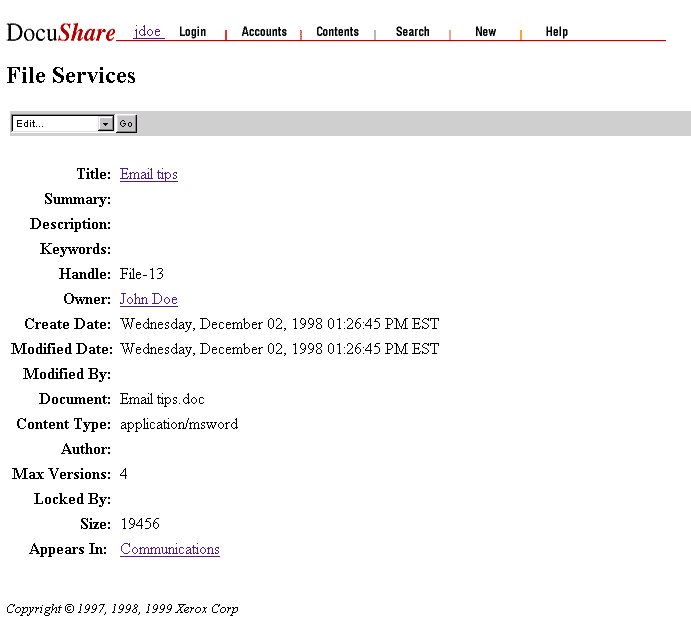
When you click on Services, the Services Page will appear, listing the properties for that object and an Edit pull-down menu, which provides access to other options. A typical Services page for a DocuShare file is displayed below.
Properties
Properties, as shown above, further describe the object by giving information, such as title, summary, description, owner, date of creation, date of last modification and keywords. Some properties, e.g., "title", may be edited if you have the proper permission, while others, e.g., "creation date", are fixed.
To change or edit properties, select Edit Properties from the Edit pull-down menu on the Services page, and the Edit [Object] page will appear. Make changes as you wish and then press the Apply button; the Services page will reappear showing the property changes you made. Fixed properties (e.g., "Creation Date") will not show up on the Edit [Object] page.
You may view or edit the properties of container objects without clicking on the Services link by selecting View Properties or Edit Properties from the Edit pull-down menu. You must be inside the container object to do this, e.g., viewing a collection page. Regardless of how you access the View Properties/Service page of an object, you need Writer or Manager level access to edit properties.
Permissions
Access depends on the permission status you have in regards to the object. The owner (creator) of an object – not the site administrator – assigns permissions for that object. Permissions establish security for the DocuShare site. Differing levels of permission or access allow various privileges regarding DocuShare objects. For example, if you have Reader access you can view an object but not modify it or its properties. For more information on permissions, see Chapter 3, DocuShare Permissions.
| Navigating a DocuShare Site |
The DocuShare default home page provides the initial entrance to your DocuShare site and contains links to one or more top-level or "root" collections that contain other sub-collections. There are also links to the accounts, the login screen, the site map, and information About DocuShare. Your DocuShare Site Administrator can easily customize the DocuShare home page, so your server's home page may be different. Contact your Site Administrator for information on the customization of your DocuShare site.
The home page also features the What's New in DocuShare feature, which helps you to find out what has been added to DocuShare recently.
DocuShare uses a series of collections and sub-collections to organize content. These collections are connected together through root collections in much the same way other file management systems use root folders and sub-folders to organize content. One important difference is that any DocuShare object may exist within more than one collection at the same time, thus leveraging the web’s powerful hypertext capabilities.
Each collection in DocuShare has a separate page. The example below shows some of the basic elements found on every collection page. Customization may change the appearance of a collection page to create a distinct look, but these elements are typical:
Like collections, objects can be customized by the site administrator, but the information listed below for each object is typical of what will appear:
To open a collection, just click on its title or folder icon. The collection page will open. Similarly, DocuShare calendars and bulletin boards open by clicking on their title or icon.
Other objects perform differently when clicked.
How these events occur is determined by your browser settings, not by DocuShare. For more information on helper application settings, see Helper Applications in Chapter 1.
Note: Having your helper applications configured properly is essential for successful use of DocuShare.
 One of DocuShare's most popular features is What's New. What's New allows you to see recent additions to DocuShare over a time frame that you can select - the last hour, today, the last 2 days, the last 3 days or the last 4 days. The extent of the listing that you see is dependent upon your logged in status and the access permissions of the newly added object.

The default navigation bar appears at the top of each DocuShare page. It provides the following links:
Logging in to DocuShare gives you greater privileges on the DocuShare site. Until you log in, you have only limited Guest access. You only need to log in to DocuShare once per browser session. You remain logged in even if you minimize your browser window.
Note: If you are not logged in to DocuShare and you try to perform a restricted operation, such as accessing a protected file or submitting information, you will see a "Not Authorized" message. You will also be provided an opportunity to log in.
To log in to DocuShare:
The DocuShare page you started from appears. You are now logged in to DocuShare. Your user name should appear at the top left of the page, near the navigation bar.
Logging out of DocuShare
You are automatically logged out of DocuShare when you close your browser session. To ensure the security of your documents, you should log out of DocuShare if you plan to leave your computer unattended and/or the screen unlocked.
To log out of DocuShare:
The DocuShare page you first started with appears. You are now logged out of DocuShare. The word Guest is displayed at the top left of the page instead of your user name. As a guest, you can still browse the DocuShare repository but you can no longer add content or update information.
The Accounts link displays the DocuShare Community Registry. Using this registry you can:
Note: Depending on the access policies set by your Site Administrator, some or all of these features may not be available.
You can access the DocuShare Community Registry using one of two methods:
Follow the links for each option listed to perform the desired task within the Community Registry. The List All Registered Users or List All Registered Groups options provide an alphabetical list of all registered users or groups. The Search for a Registered User option allows you to search the user listing to find a particular user.
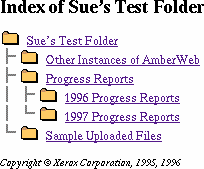
The Contents link provides a table-of-contents view of DocuShare collections. If accessed from the home page, it provides a view of the entire DocuShare repository. If selected while in a collection, it displays a similar view of the current collection and its sub-collections. You can click on any object within this index to access it.
An example of this table-of-contents view is shown to the right.
Search provides the ability to search for any item within the DocuShare site. If selected from the home page, it will search the entire site. If selected while within a collection, the search can be restricted to just that collection. For more information on searching, see Chapter 9 "Searching in DocuShare" for more details.
Provides the same functionality as the "What's New" feature on the home page, but can be accessed anywhere within the DocuShare site. When selected from the home page, it presents a listing of all new items added to the site within the selected time frame. If selected while in a collection, the What's New listing can be restricted to just that collection. See "What's New" for more details.
Help provides access to the DocuShare Help Desk - information sources to help DocuShare users with problems encountered while using DocuShare. The Quick Reference Guide and the more extensive DocuShare User Guide can be found there. There is also a link to contact the Site Administrator to report any unusual problems.
Help also provides access to the installation files for the DocuShare Windows Client along with instructions for DocuShare File UpHelper Application installation.
| DocuShare Users |
|
|
A user is someone with a registered user account on DocuShare. Users are represented in the What's New listing by the icon shown left. |
Although you can browse through the DocuShare site and view many documents contained there, you cannot write to the site or view restricted content without obtaining a user account. Registered users of a DocuShare site can add content, create personal or workgroup collections and view documents not available for viewing by guests of the site.
When you create a user account in DocuShare, that process creates a user record with information such as your name, email address, phone number, DocuShare user name, and DocuShare password (known only to you). This can provide a convenient resource to assist other users in contacting you. You can update this information at any time by editing your user properties.
Note: In the default setting for DocuShare, any guest can create a user account. Your DocuShare Site Administrator can alter this policy by restricting user account creation to only other registered users of the site or to the Site Administrator. Check with your DocuShare Site Administrator for the user account creation policies for your site.
To create a user account:
The Create User page has the following properties:
|
Property |
Description |
|
First Name |
(Optional) Together with the Last Name field, provides your name for display purposes in DocuShare. |
|
Last Name |
Together with the First Name field, provides your name for display purposes in DocuShare. This is a required field. |
|
Email Address |
(Optional) Specifies your fully qualified email address. Used to send an individual mail message to you or when sending email to a DocuShare group of which you are a member. Your email address must be specified in full Internet format (for example, fred_smith@sales.acme.com). |
|
Home Page |
|
|
Mailing Address |
(Optional) Specifies your street address or an internal mailstop (for example, M/S 128-51E). For display purposes only. |
|
Phone |
(Optional) Your phone number or extension. For display purposes only. |
|
Use Helper for Upload |
The Use Helper for Upload attribute specifies when to use the DocuShare File UpHelper application. It may be set to one of three values:
For more information on the DocuShare File UpHelper Application, please see "DocuShare UpHelper " in Chapter 1. |
|
Organization |
(Optional) Specifies your internal workgroup organization. For display purposes only. |
|
User name |
Specifies the name you use to log in to DocuShare. This is a required field. |
|
Password |
Specifies the password you use to log in to DocuShare. This is a required field. |
|
Password Again |
Requires you to type your password a second time for confirmation. This is a required field. |
Note: There may be additional properties displayed on this page that are not listed here. They are specific to your DocuShare site. See your Site Administrator for details.
Note: If you forget your DocuShare password, do not reregister as a user. Instead, contact your local DocuShare Site Administrator for assistance.
You can view the properties of a user at any time. You do not need to be logged in to view user properties. However, you must be logged in to DocuShare to perform any editing functions that can be accessed through the Services page.
There are two ways to access a user's Services page, depending upon your location:
User properties include:
Note: There may be additional properties displayed on this page that are not listed here. They are specific to your DocuShare site. See your Site Administrator for details.
All of these properties (except groups and user name) can be edited or modified by the user through the Edit Properties function. To edit the user's User name, use the Change User name function.
The Services page provides access to editing functions using these selections in the pull-down menu area:
Note: These editing functions are only available to the registered user listed or the Site Administrator. A user cannot edit another user's properties.
You can edit any user property after initial creation. You must be logged in as the registered user to edit your user properties. You cannot edit another user's properties.
To edit your properties:
The User Services page appears, showing the user properties.
Changing Your User Name or Password
To change your Password:
To change your User name:
| DocuShare Groups |
A group is an assembly of one or more DocuShare users and/or other groups into a distinct unit. They are represented in the What's New listing by an  icon.
icon.
When you are working with more than a few individuals or documents, creating a user group makes it easier to maintain access permissions for a group of users. You must be logged in to create a user group.
To create a user group:
The Create Group page has the following properties:
|
Property |
Description |
|
Group Name |
Contains a descriptive name for the permission group (for example, PIT Members). This is a required field. This name will be used in all menus when selecting, viewing, or editing the group. Choose a name that reflects the function of the group. |
|
Summary |
(Optional) Contains a short description of the group being created in DocuShare (for example, Members of Process Improvement Team). |
|
Change Membership |
If you select Owner, only the owner of the group (the user who created the group in DocuShare) can change the membership of the group. If you select Group Members, the specified members of the group can change the membership of the group. The default is Owner. |
|
Members |
Use this scrolling list to specify the members of the new group. The list shows the names of all registered DocuShare users and groups. |
Note: There may be additional properties displayed on this page that are not listed here. They are specific to your DocuShare site. See your Site Administrator for details.
You can list all of the currently registered DocuShare groups from the DocuShare Community Registry. Click the Accounts link on any DocuShare page to go to the Registry, then click the List All Registered Groups link to view the Current DocuShare Groups page.
You can view the properties of a group at any time. You do not need to be logged in to view group properties. However, you must be logged in to DocuShare to perform any editing functions that can be accessed through the Services page.
To access a group's Services page, click on the Accounts link in the toolbar at the top of each page. In the DocuShare Community Registry, select List All Registered Groups. Select the name of the group from this listing.
Group properties include:
Note: There may be additional properties displayed on this page that are not listed here. They are specific to your DocuShare site. See your Site Administrator for details.
All of these properties (except the object id and the creation/modification dates/times) can be edited or modified by the owner of the group through the Edit Properties function. You can also use this function to add new members to the group or remove members from the group. To edit the Owner of the group, use the Change Owner function.
The Group Services page provides access to editing functions, using these selections in the pull-down menu:
You can edit the properties of a DocuShare user group at any time by selecting Edit Properties from the pull-down menu on the Group Services page. Editing group properties also allows you to add or remove members from a group. You must be the owner of the group to edit its properties. You must also be logged in to DocuShare.
To edit the properties of a group:
If you are the owner of a group, you can transfer ownership of the group to another user. You must be logged in to DocuShare.
To change ownership of a group:
The group now reflects the change in owners.
You can send an email message to all members of a DocuShare user group if:
To send an email message to a user group:
Only the logged-in owner of a user group or a DocuShare site administrator can delete the group.
To delete a user group:
|
|
|
| Table of Contents | Getting Started | DocuShare Permissions |


