 |
 |
| Table of Contents | Becoming a DocuShare User |
| DocuShare User's Guide |
DocuShare Overview
Platform Requirements and Options
Platform Requirements
Configuring Your Browser
Browser Requirements
Windows Client
Uploading Files
Disabling Proxies
DocuShare Client Applications
Setting the Cache Attribute
Helper Applications
DocuShare Windows Client
Installing the DocuShare Windows Client
DocuShare UpHelper
Installing the DocuShare UpHelper Application
Manually Configuring the Netscape browser to use UpHelper
|
|
| Table of Contents | Becoming a DocuShare User |
| DocuShare Overview |
DocuShare is a Web-based document management system that lets you easily store, access, and share information in a collaborative work environment. You can maintain information on the Web without having to understand hypertext markup language (HTML). With DocuShare, users can create their own accounts and add or delete information without the intervention of a Webmaster or site administrator.
The information that you store in DocuShare is organized using nested folders called collections in DocuShare. Collections may contain other DocuShare objects such as files, calendars, bulletin boards, URLs and other collections. Any of these DocuShare objects can appear in multiple collections at once and can be found quickly by using the various DocuShare navigation and search features.
Some of DocuShare's features are listed below:
Note: Throughout this manual, all directions to click links, buttons, or icons imply a single mouse click.
Additionally, all icons and buttons displayed in this manual reflect the default settings of DocuShare. Your DocuShare Site Administrator may change any of these icons or buttons to customize the appearance of your site. Contact your DocuShare Site Administrator regarding any changes due to site customization.
| Platform and Browser Requirements |
DocuShare operates on any standard Web browser. The DocuShare software and associated files are located on a networked server, not your local computer. With the optional Windows Client software, DocuShare may be accessed from Windows Explorer instead of or in addition to using a web browser.
You can access and use DocuShare from all computer platforms and operating systems for which World Wide Web access is available, including:
You must have network access to the World Wide Web to access a DocuShare server. You may encounter some additional usage limitations due to the Web browser you are using or restrictions imposed by documents created in 3rd party software formats. For example, Microsoft Word does not run automatically on UNIX.
You can access and use DocuShare from a standard World Wide Web browser. Browsers known to work well with DocuShare are:
Other browsers may be used but must support tables, "client-side cookies" for log in, and the use of 3rd party helper applications or "viewers" for display of additional content format types such as word processing, spreadsheet or presentation files.
If you use Windows 95, Windows 98 or Windows NT 4.0, you can mount DocuShare as a drive on Windows Explorer and manage files in DocuShare as if they were within Explorer (see chapter 10: DocuShare Windows Client). You must have either Windows 95, Windows 98 or Windows NT (or a higher version) to use the Windows Client.
DocuShare enables you to upload files from your computer to the DocuShare server, where they are indexed and managed. File-upload enabled browsers (such as Netscape Navigator 2.0 and above or MS Internet Explorer 4.0) allow you to use your existing browser for all file upload functions.
To upload files with browsers that do not support the file-upload standard, such as Microsoft Internet Explorer 3.0, you must install the DocuShare File UpHelper application on your personal computer. The DocuShare UpHelper application provides the ability to drag-and-drop files from your computer’s file management system and to upload multiple documents at one time. See the section below DocuShare UpHelper Application for installation instructions. Note: The DocuShare UpHelper application is designed for use only with MS Windows-based systems. It is not available for the MacOS or UNIX-based systems.
| Configuring Your Browser |
To use DocuShare successfully, you must adjust your browser’s configuration settings. Those adjustments are:
You must also be sure your browser can accept "cookies". Some newer browsers will allow users to disable this feature. For successful use of DocuShare, your browser must accept "cookies". See your Site Administrator for more information on cookies.
In addition, if your browser does not support the file-upload standard, you must also install the DocuShare File UpHelper Application.
In many corporate networks, a barrier, or firewall, is set up on an internal network (or intranet) to restrict the information that flows between the company computers and other external networks (the Internet). Limited Internet access is provided by a proxy server, which sits on the firewall and provides a pipeline to the Internet. When you use a proxy to access a DocuShare server that is already on an internal network (or intranet), you are essentially going out beyond the firewall and then coming back in again to the network.
For the most efficient network response, the preferred method for using DocuShare is to access the DocuShare server directly through your internal network, bypassing the proxy server. To do this, you must turn off proxy access from the internal network domain. For example, if your DocuShare server is located in the network domain sales.acme.com, you should configure your browser to not use a proxy for the domain sales.acme.com.
Note: If you do not turn off proxy server access settings as described, you may encounter problems while uploading files to the DocuShare server. Some older proxy servers do not handle binary file uploads correctly. In that situation, the file uploading procedure may appear to complete successfully to the user, but no file will appear on the DocuShare server.
|
Browser |
Action |
|
Netscape Navigator |
|
|
Netscape Navigator |
|
|
Internet Explorer |
|
|
Internet Explorer |
|
Most browsers provide caching mechanisms that store Web pages on your local disk and then retrieve the local files when you re-access the page. This can significantly increase browsing speed and reduce network traffic. However, because DocuShare pages are dynamically created and change frequently, you should configure your Web browser to not use a local disk cache when it connects to your DocuShare server. This will ensure that you always have the latest and "freshest" version of the DocuShare pages.
Note: If you do not adjust your cache setting, you may not see recent additions to a collection or may not even appear to be logged in. Although hitting the Reload or Refresh button on your browser will renew your view of the page and correct this situation momentarily, adjusting your browser's cache options will prevent you from constantly reloading pages manually.
|
Browser |
Action |
|
Netscape Navigator |
In Options | Network Preferences | Cache, set Check Documents to Every Time. |
|
Netscape Navigator |
In Edit | Preferences | Advanced | Cache, set Check Documents to Every Time. |
|
Internet Explorer |
In View | Options | Advanced | Settings | Temporary Internet Files, set Check for newer versions of stored pages to Every visit to the page. |
|
Internet Explorer |
In View | Internet Options | At General tab, press Settings button under Temporary Internet Files, set Check for newer versions of stored pages to Every visit to the page. |
DocuShare only provides a repository for your files. It is actually your Web browser software that determines how a file that you download from DocuShare is handled.
All Web browsers automatically interpret and display pages that have been created in HTML. But Web browsers do not automatically display other proprietary formats, such as Microsoft Office applications, PDF, and so on. When a browser retrieves a file with a file format that it cannot interpret, the browser uses a separate viewer to display that file. The viewer can be either:
A helper application is a particular application such as Word, PowerPoint, Excel, or the Acrobat Reader, which is automatically launched to display the selected file. For example, when accessing a file that ends in a .doc or .dot extension, if your browser's helper application is properly configured, your Web browser will automatically start Microsoft Word to view the file -- the browser uses Word to display a Word file.
A plug-in is a software program that extends the capabilities of your browser in a specific way - giving you, for example, the ability to play audio samples or view video movies from within your browser. Plug-ins are primarily used for multimedia-type applications.
Note: If your browser is not configured for a particular helper application, most newer browsers will display a dialog box to help you to make these settings each time you encounter an unrecognized file type. This is much easier than the manual configuration process described below and should be used whenever possible.
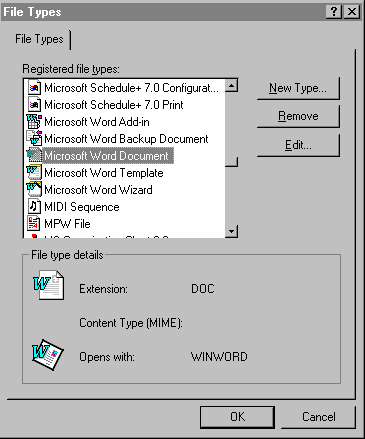
To configure your browser manually, use the following procedures to set up the helper applications for Microsoft Word, Excel, and PowerPoint and the Adobe Acrobat Reader. The process to configure your browser for other file types is similar. Contact your local Site Administrator for the correct MIME type and subtype settings for your DocuShare server.
|
Browser |
Action |
|
Netscape Navigator |
|
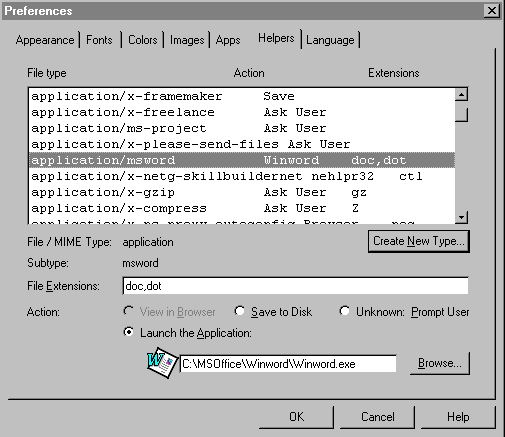
Note: Setting the Action to Launch the Application will launch the specified application when the browser encounters a file extension of .doc or .dot. You must Browse to the location of this application on your computer to complete this step.
|
Browser |
Action |
|
Internet Explorer |
|
| DocuShare Client Applications |
The DocuShare Windows Client
The DocuShare Windows Client is an application that allows you to access and manage DocuShare files from within Windows Explorer. Once installed and mounted (see Installing the DocuShare Windows Client), DocuShare will show up as another drive on your regular Explorer tree structure. Using the Windows Client, you can access and interact with DocuShare just as you would with your local or network drives. For example, you can view the contents of DocuShare collections, open and edit files, copy files to and from (or within) DocuShare by dragging and dropping, and even use a combination of Explorer and the web interface to manage files. For further information, see Chapter 10: DocuShare Windows Client. You can also access DocuShare files from within your editor applications (e.g., Microsoft Word) using the ODMA Client to check documents in and out of DocuShare. See Chapter 11: DocuShare ODMA Client.
Note: You must have either Windows 95, Windows 98, Windows NT 4.0 or higher to use the DocuShare Windows Client.
Installing the DocuShare Windows Client
To install the Windows Client:
The DocuShare File UpHelper Application is a Windows application that enables file uploading to DocuShare for older Windows systems. It provides support for users of browsers such as Internet Explorer 3.0, which do not support the file upload standard. The maximum number of files you may upload at a time using this helper application is 100.
Netscape Navigator 2.0 and Microsoft Internet Explorer 4.0 support the file upload standard, but only allow the upload of one file at a time. If you are using either of these browsers and anticipate uploading multiple files during a session, you may also want to install UpHelper or the DocuShare Windows Client.
To use UpHelper, you must:
Note: The DocuShare UpHelper application is designed for use only with MSWindows-based systems. It is not available for the MacOS or UNIX-based systems.
Installing the DocuShare UpHelper Application
To install the UpHelper Application:
Manually Configuring the Netscape browser to use UpHelper
Although the UpHelper installation process will configure both Netscape and Internet Explorer to use the UpHelper application, in case of any problems, please refer to these directions for manually configuring the UpHelper to work with the Netscape browser.
Required settings for configuring UpHelper to work with Netscape Navigator 3.0:
Select OK to exit the dialog box.
|
|
| Table of Contents | Becoming a DocuShare User |