 |
 |
 |
| Table of Contents | DocuShare Files | DocuShare URLs |
| DocuShare User's Guide |
|
|
|
| Table of Contents | DocuShare Files | DocuShare URLs |
DocuShare also has the ability to create online calendars. They are represented by a  icon. You can use a DocuShare online calendar as a personal calendar or as a shared, group calendar. Calendar entries are called Events. Each event is associated with a specific day, or with a specific sequence of days, such as every Monday for six weeks. As with all DocuShare objects, events have a title, description, and the standard set of permission attributes. By default, an event's permissions are inherited from the calendar, but they can be individually modified to create various kinds of public and private events, for example.
Calendars have two view options - one month at a time or one week at a time. One editable property of a calendar is which view to use as the default when the calendar is initially opened. When first opened, a calendar will display either the current month or week, with the current day highlighted.
An example calendar in month view is shown in the following example.
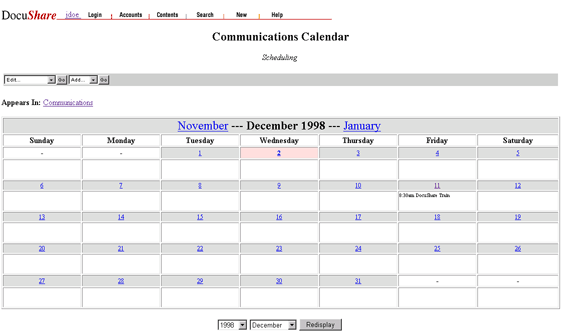
In the month view, a calendar displays all the days in a specified month, with the first three events of each day displayed in an abbreviated manner. The toolbar includes a button that will take you to a week view for that month. If it is the current month, the week view button will display the current week. Otherwise, it will display the first week of the month. Use the highlighted month names to navigate forward or backward in the calendar.
To add an event to or display details about a specific day, click on the day number link. An Event page for the selected day appears, as shown in the following example.
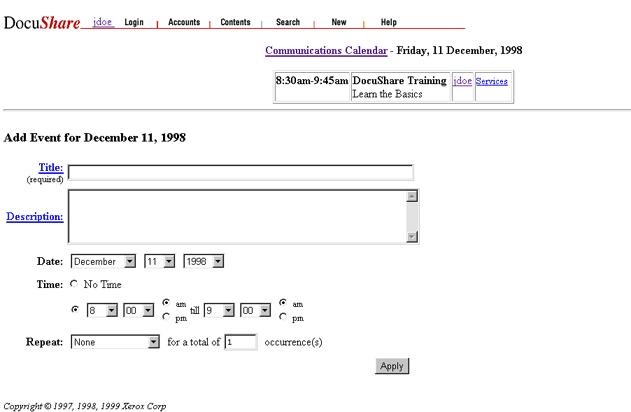
Existing events are listed in a table at the top of the page. You can click on the Services link to display or edit the properties of an existing event. Below that table is a form to add new events for that day. To return to the current calendar view, click the highlighted calendar name link at the top of the Event page.
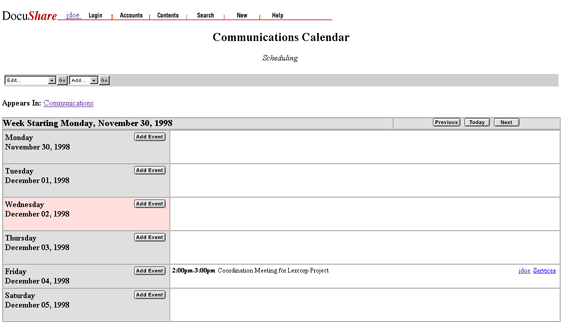
The figure shows an example calendar in week view. In the week view, a calendar displays all the days in a specific week, starting with Monday and ending with Sunday. Each day contains a complete listing for all of the events in that day, including the events' complete title and description. To display or edit the properties of an existing event, click on its Services link. To add an event to a specific day, select the Add Event button for the desired day.
The toolbar includes a button that will take you to the month view containing the week currently displayed. Use the Previous and Next buttons to move to the previous and next week, respectively. Use the Today button to move to the current week. The current day will be highlighted.
You can add a calendar to any collection in DocuShare to which you have at least Writer access permissions. However, you must be logged in to DocuShare to create a calendar.
The Add Calendar page has the following properties:
|
Property |
Description |
|
Title |
Specifies a descriptive title for the calendar. The title can contain spaces and other punctuation marks. You should assign a meaningful title to the calendar. The default title is New. This is a required field. |
|
Summary |
(Optional) Specifies a short description of the calendar. The contents of this field are displayed below the calendar title on the corresponding DocuShare collection page. Use the Description field to provide a more detailed description of the calendar. |
|
Description |
(Optional) Specifies a detailed description of the calendar. The contents of this field are displayed below the calendar title and summary on the DocuShare page. The Description field can contain HTML code to customize the calendar's appearance. |
|
Keywords |
(Optional) Lets you specify one or more words associated with the file. Keywords help categorize the different files and streamline searches. |
|
Default View |
(Optional) Specifies the default calendar view: by month or by week. The user can toggle between month and week view from within an open calendar. |
Note: There may be additional properties displayed on this page that are not listed here. They are specific to your DocuShare site. See your Site Administrator for details.
The calendar is created in DocuShare and the Services page for the calendar appears.
You can verify that the calendar was created by clicking the Appears In link to move you up one level in the collection hierarchy. The calendar should now be listed with a  icon. If you don't see the calendar, click Reload on your browser to refresh the page display.
Note: After creating the calendar, you should adjust the access permissions for the calendar to make sure they provide the desired level of access for other users and groups. See the section Viewing and Editing DocuShare Object Permissions in Chapter 3 for more information on adjusting these permissions.
|
Viewing Calendar Properties |
You can view the properties of a calendar at any time. You do not need to be logged in to view a calendar's properties. However, you must be logged in to DocuShare to perform any editing functions that can be accessed through the Calendar Services page.
To access a calendar's Services page, click on the Services link to the right of the calendar in the collection listing. If you are in an open calendar, select View Properties from the Edit pull-down menu.
Calendar properties include:
All of these properties (except the object id, the creation/modification dates/times and calendar location) can be edited or modified by the owner of the calendar or a user with Writer access permissions through the Edit Properties function.
Use the Edit Location function on main calendar toolbar to edit the Appears In property (calendar location).
The Services page provides access to editing functions, using these selections in the pull-down menu:
|
Editing Calendar Properties |
You can edit the properties of a calendar at any time by selecting Edit Properties from the calendar’s Edit pull-down menu. You must be the owner of the calendar or have Writer access permissions to edit a calendar's properties. You must also be logged in to DocuShare.
To edit the properties of a calendar:
Note: There may be additional, editable properties displayed on this page that are not listed here. They are specific to your DocuShare site. See your Site Administrator for details.
Only the owner of a calendar or a user with Manager access for that calendar can delete a calendar from DocuShare. You must be logged in to DocuShare to delete a calendar.
To delete a calendar:
The calendar is now deleted. You may need to Reload the page to see these changes.
The Edit Location command allows a user to move a DocuShare object from one location to another or allows the object to appear in multiple locations within the DocuShare repository. You must have at least Writer access to the object to change its location.
The location of an object is displayed in the Appears In property, which is displayed at the end of each Properties listing for an object. Using the Edit Location command allows you to edit the Appears In property.
This is a helpful command if you have created a calendar (or any other DocuShare object) in the wrong location and want to move it instead of deleting it and then re-creating it. It is also helpful if you would like the same object to appear in one or more additional locations. All DocuShare objects can appear in multiple locations at once. However, there is actually only one physical copy of the object in the DocuShare database; the system simply creates additional pointers or references to the object.
A negative side effect of this command is that if used incorrectly, you can orphan the object. Orphaned objects still exist within the DocuShare repository but are not accessible to users. Only a Site Administrator can recover orphaned objects.
To change the location of a calendar:
Note: Use caution when deselecting locations. Deselecting improperly can create orphaned files. Be sure that at least one location is selected in the scrolling list before selecting the Update Locations button.
The Services page for that calendar now appears and the new location(s) is/are displayed in Appears In property. If you don't see this change reflected on the Services page, click Reload on your browser to refresh the page display.
You can add a calendar event to any calendar in DocuShare to which you have Writer access permission. You must be logged in to DocuShare create a calendar event.
You can also repeat DocuShare calendar events over a series of days/weeks/months. For example, if you have a meeting every two weeks, you can simply specify the meeting as repeating every two weeks, without having to enter each occurrence of the meeting.
To add a calendar event:
The Add Event page has the following properties:
|
Property |
Description |
|
Title |
Specifies a descriptive title for the calendar event (for example, "Meet with Joe"). The title can contain spaces and other punctuation marks. You should assign a meaningful title to the calendar event. The default title is New. Only the first fifteen characters of the title are displayed on the calendar's month view. This is a required field. |
|
Description |
(Optional) Specifies a detailed description of the calendar event (for example, "Meeting in conference room 218; bring bagels and juice!"). |
|
Date |
Specifies the year, month, and day for the event. |
|
Time |
Specifies the start and end time for the event, in quarter hour increments. Radio buttons allow selection of a.m. or p.m. For events that will occur for an entire day, select No Time. |
|
Repeat |
Specifies whether the event repeats: daily, weekly, every two weeks, monthly, or by date. Also specifies the number of times that the event repeats. |
Note: There may be additional properties displayed on this page that are not listed here. They are specific to your DocuShare site. See your Site Administrator for details.
The event is created in the DocuShare calendar and the Services page for the event appears.
You can verify that the event was created by clicking the Appears In link to move you to the default calendar view. If you don't see the collection, click Reload on your browser to refresh the page display.
Note: After creating the event, you should view the access permissions for the event to make sure they provide the desired level of access for other users and groups. See the section Viewing and Editing DocuShare Object Permissions in Chapter 3 for more information on adjusting these permissions.
You can edit the properties of a calendar event at any time by selecting Edit Properties from the Edit pull-down menu on the calendar event's Services page. For repeating events, you can specify to edit all of the events in the series, or just the selected event.
You must be the owner of the calendar event or have at least Writer access permissions to edit event properties. You must also be logged in to DocuShare.
To edit the properties of a calendar event:
Note: There may be additional properties displayed on this page that are not listed here. They are specific to your DocuShare site. See your Site Administrator for details.
Only the owner of a calendar event or a user with Manager permission for the event can delete it from DocuShare. For repeating events, you can specify to delete all of the events in the series, or just the selected event. You must be logged in to DocuShare to delete events.
To delete a calendar event:
Note: If you change your mind about deleting this collection, use the Back button on your browser to close the Delete or Confirm Deletion page.
The collection is now deleted. You may need to Reload the page to see these changes.
Just as in other DocuShare objects, the Edit Location command allows a user to move a DocuShare event from one calendar to another or allows the event to appear in multiple calendars within the DocuShare repository. There is only one physical copy of the event in the DocuShare database; the system simply creates additional pointers or references to it.
You must have at least Writer access to the object to change its location. You must also be logged in to DocuShare.
The location of an object is displayed in the Appears In property, which is displayed at the end of each Properties listing for an object. Using the Edit Location command allows you to edit the Appears In property.
Editing the location of a calendar event enables creating group or shared calendars. You can create an event in your own calendar and then edit its location to appear in your calendar and your workgroup's shared calendar.
A negative side effect of this command is that if used incorrectly, you can orphan the event. Orphaned objects still exist within the DocuShare repository but are not accessible to users. Only a Site Administrator can recover orphaned objects.
To change the location of a calendar event:
Note: Use caution when deselecting locations. Deselecting improperly can create orphaned events. Be sure that at least one location is selected in the scrolling list before selecting the Update Locations button.
The Services page for that calendar event now appears and the new location(s) is/are displayed in Appears In. If you don't see this change reflected on the Services page, click Reload on your browser to refresh the page display.
|
|
|
| Table of Contents | DocuShare Files | DocuShare URLs |