 |
 |
 |
| Table of Contents | DocuShare Collections | DocuShare Calendars |
| DocuShare User's Guide |
Overview
Adding Files to DocuShareUsing a Web Browser
Viewing File Properties
Using the DocuShare File UpHelper Application
Editing File Properties
Deleting a File
View Files in HTML
Editing the Location of a File
Managing Files through Versioning and Locking
Working with Files
|
|
|
| Table of Contents | DocuShare Collections | DocuShare Calendars |
DocuShare allows you to store and manage documents in many popular file formats and access those files via a World Wide Web (WWW) connection.
DocuShare provides a repository on an internal network server that is accessed through a Web browser. You can add files to this repository from your computer. Conversely, you can also download copies of these files from the repository and open or save them to your computer. You can manage access to these files by other users by setting user access permissions. You can also delete files from the repository, manage multiple document revisions, and lock files for safe collaborative authoring.
Because DocuShare provides this web-based repository, you can access, transfer and share files between groups located within an internal network. All the users need to use the DocuShare file repository is a properly configured Web browser and access to the internal network.
Files are downloaded from the DocuShare repository simply by clicking on the filename. If your browser is properly configured to open a file of this application type, the file’s native application will open and the file will display. You can then choose to save the file to your own computer, print out a copy from the application, or just view the file and close it when finished. Note: Downloading does not transfer the actual file to your computer, only a copy. The original copy of the file remains in the DocuShare repository until it is deleted.
The DocuShare server comes with default settings to accept a variety of popular application file types, including:
DocuShare |
Application |
File Extensions |
|
|
Microsoft Word |
.doc, .dot |
|
|
Microsoft Excel |
.xls |
|
|
Microsoft PowerPoint |
.ppt |
|
|
Microsoft Access |
.mdb |
|
|
Microsoft Project |
.mpp |
|
|
Adobe Acrobat (pdf) |
|
|
|
PostScript |
.ps |
|
|
Visio |
.vsd |
|
|
Compressed Files (zip) |
.zip |
|
|
Image File formats |
.gif, .jpg, .pct |
|
|
Rich Text Format (rtf) |
.rtf |
|
|
Executable files |
.exe |
|
|
Text or HTML files |
.txt, .htm, .html |
Note: This may not be a complete list of application file types or extensions for your particular DocuShare site. Contact your Site Administrator for a complete listing.
DocuShare only provides a repository for these file types. Because you are using a Web browser to access the files in this repository, it is the configuration of your Web browser that controls how these files are handled. They can be opened within the browser or application window or saved directly to your computer. For most of the proprietary application formats listed in the previous table, your Web browser requires helper applications to view these files properly. In most cases, these are the same applications that were originally used to create these files. Your browser must be configured to use these helper applications to view these files. This is essential for successful use of DocuShare.
For example, your browser may be configured to open the application Microsoft Word whenever you download a file that has the extension of ".doc". Your browser may also be configured to automatically save any file that has the extension of ".exe" or ".zip". To ensure that your browser is properly configured for these applications, see the section Helper_Applications in Chapter 1 for more details.
Windows Users have the option of utilizing the Windows Client and ODMA Client to view, manage, and edit DocuShare files directly from Explorer or editor applications. See Chapter 10, DocuShare Windows Client and Chapter 11, DocuShare ODMA Client for more information on these options.
You can add a file to any collection in DocuShare to which you have at least Writer access permissions. You must also be logged in to DocuShare to add a file.
New or edited files are sent (or uploaded) to the DocuShare repository using three different methods:
Use (or non-use) of the File UpHelper application is controlled by the "Use Helper for Upload" user property. See "DocuShare Users" in Chapter 2 for more details on this setting.
Adding a File to DocuShare using a Web Browser
To add (or upload) a file to the DocuShare repository using a web browser, you must be using a file upload enabled web browser (Netscape 2.0 or above) and your "Use Helper for Upload" attribute in User Properties must be set to either When Necessary or Never. You must be logged in to DocuShare and have at least Writer access permissions to the collection.
To add a file to DocuShare using a Web Browser:
The Add File page has the following properties:
|
Property |
Description |
|
Document |
Specifies the path and name of the file you want to upload from a local or network drive to DocuShare. This is a required field. |
|
Title |
Specifies the title for the new file. The title can contain spaces and other punctuation marks. You should assign a meaningful title to the file. This is a required field. |
|
Summary |
(Optional) Specifies a short description for the file. The contents of this field are displayed below the title of the file on the DocuShare collection page. |
|
Max Versions |
Specifies whether DocuShare provides version control for the file. You can specify the maximum number of versions of a file that are retained in DocuShare as a record of the file's history. Enter 1 to turn off versioning (only keep one copy of a file at a time). If you add more versions than this maximum value, the oldest version is deleted. |
|
Description |
(Optional) Specifies a detailed description of the file, such as an abstract. The description may include a summary of the purpose and the audience of the file. |
|
Keywords |
(Optional) Lets you specify one or more words associated with the file. Keywords help categorize the different files and streamline searches. |
|
Restrict Write |
If you select Yes, specifies that the new file is created with write access limited to the owner, rather than being inherited from the collection. |
|
Author |
Name of the document’s author, if different from the owner submitted the file. |
Note: There may be additional properties displayed on this page that are not listed here. They are specific to your DocuShare site. See your Site Administrator for details.
Adding Files to DocuShare using the File UpHelper Application
To add (or upload) a file to the DocuShare repository when using a web browser that is not file upload enabled (Microsoft Internet Explorer 2.0 or 3.0) you must have the DocuShare File UpHelper application installed on your computer. See DocuShare UpHelper in Chapter 1 for installation instructions. Users of upload-capable browsers can also use this application to upload files, especially if they wish to upload multiple files to the repository.
Your "Use Helper for Upload" attribute in User Properties must also be set to either When Necessary or Always. Netscape users using the UpHelper application should set the attribute to Always. You must be logged in to DocuShare and have at least Writer access permissions to the collection.
The UpHelper application for DocuShare supports drag and drop addition of files and directories from your file management application. You can drag a directory into the UpHelper window and the directory structure will be maintained. This directory structure will also be recreated after upload into DocuShare. The directory name will become the name of the new collection; the files and/or subdirectories located within that directory will be uploaded into DocuShare and placed in that new collection.
To add files to DocuShare using the File UpHelper application:
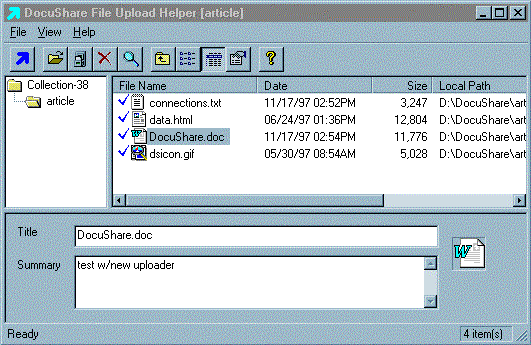
Note: After adding the file, you should check the access permissions for the file to make sure they provide the desired level of access for other users and groups. See the section Viewing and Editing DocuShare Object Permissions in Chapter 3 for more information on adjusting these permissions.
Known problems adding files to DocuShare with the File UpHelper application:
You can view the properties of a file at any time. You do not need to be logged in to view the file properties. However, you must be logged in to DocuShare to perform any editing functions that can be accessed through the Services page.
To access a file's Services page, click on the Services link to the right of file in the collection listing. The Services page will appear, listing the file properties.
Properties include:
Note: There may be additional properties displayed on this page that are not listed here. They are specific to your DocuShare site. See your Site Administrator for details.
All of these properties (except the object id, the creation/modification dates/times and collection location) can be edited or modified by the owner of the file or a user with Writer access permissions through the Edit Properties function. To edit Appears In (collection location), use the Edit Location function.
The Services page provides access to editing and versioning functions, using these selections in the pull-down menu:
Many properties of a file can be edited or modified after initial creation. You must be the owner of the file or have Writer access permissions to edit a collection's properties. You must also be logged in to DocuShare.
To edit the properties of a file:
Only the owner of a file or a user with Manager access can delete a file from the DocuShare repository. You must be logged in to delete a file from DocuShare. Note: Opening or saving a file on your local machine does not delete the file from the DocuShare repository.
To delete a file:
The file is now deleted. You may need to Reload the page to see these changes.
The View option provides a conversion of files into HTML for immediate viewing without use of a helper application. Supported file types include word processing files such as Microsoft Word and image files such as TIFF. This conversion adds a View link next to the Services link for all files added to the DocuShare repository that can be converted in this manner. When you click on the View link, the file in question is converted into HTML on the server and the converted document is then sent to your browser. This feature provides quick viewing access to the contents of files and does not require configuration of a helper application.
For a list of file formats that are supported by this feature, please see Readme.txt or contact your Site Administrator.
To view a file:
The Edit Location command allows a user to move a DocuShare object from one location to another or allows the object to appear in multiple locations within the DocuShare repository. You must have at least Writer access to the object to change its location.
The location of an object is displayed in the Appears In property, which is displayed at the end of each Properties listing for an object. Using the Edit Location command allows you to edit the Appears In property.
This is a helpful command if you have added a file (or any other DocuShare object) in the wrong location and want to move it instead of deleting it and then re-creating it. It is also helpful if you would like the same file to appear in one or more additional locations. All DocuShare objects can appear in multiple locations at once. However, there is actually only one physical copy of the object in the DocuShare database; the system simply creates additional pointers or references to the object.
A negative side effect of this command is that if used incorrectly, you can orphan the object. Orphaned objects still exist within the DocuShare repository but are not accessible to users. Only a Site Administrator can recover orphaned objects.
To edit the location of a file:
Note: Use caution when deselecting locations. Deselecting improperly can create orphaned files. Be sure that at least one location is selected in the scrolling list before selecting the Update Locations button.
The Services page for that file now appears and the new location(s) is/are displayed in Appears In. If you don't see this change reflected on the Services page, click Reload on your browser to refresh the page display.
DocuShare supports the complete range of a document's life cycle, including collaborative authoring of a series of drafts and final archival publication of a completed work. When working on an important document over time, such as a product's functional requirements, you may want to retain an ongoing record of all past versions of the file. When working as part of a team, you may need a way to control who is currently working on a given file and thereby prevent the other team members from making conflicting edits. In many other cases, you may simply want to store and exchange individual copies of files without any of the traditional document management overhead. By using DocuShare's versioning and locking features, you can manage each individual file in the most appropriate way.
Version control maintains a record of a file's history. For each past version, it retains a copy of that version, the identity of the user who put that version into DocuShare and when it was done, and an optional user-supplied comment about that version. The number of past versions that are retained by DocuShare (i.e., the length of the file's history) is specified by the file's Max Versions property. Setting Max Versions to N causes DocuShare to retain at most the last N versions. If N versions are currently stored, then adding a new version will cause the oldest version to be deleted. You can track and download a specific file version by viewing the file's history. All previous versions of the file are available for download and edit. You can change the value of Max Versions at any time, but this action does not reconstruct prior versions.
When you set Max Versions equal to one, versioning is effectively turned off and the history is empty.
If you are collaborating on a file with other users, you should lock the file in DocuShare when you are working on it. This is a standard document management procedure that indicates to other users that you are working on the file. Locking a file prevents other users from editing it at the same time and adding a new version. When you lock a file, a tiny padlock icon appears next to the file's Services link. You can also unlock a file without creating a new version (discard any changes made since the last version).
You must be the owner of the file or have at least Writer level access to upload a new version of a file. You must also be logged in to DocuShare.
To edit and add a new version of a file to DocuShare:
The updated version of the file is now unlocked and in the DocuShare repository. You can verify that the updated version is in DocuShare by clicking on the file title to open it and check for your edits.
To unlock a file without adding a new version:
To view the version history of a file:
Two tips to remember about files:
|
|
|
| Table of Contents | DocuShare Collections | DocuShare Calendars |


