 |
 |
 |
| Table of Contents | DocuShare URLs | Searching in DocuShare |
| DocuShare User's Guide |
Bulletin_Boards
Adding a Bulletin Board
Viewing Bulletin Board Properties
Editing Bulletin Board Properties
Deleting a Bulletin Board
Editing the Location of a Bulletin Board
Adding a Bulletin
Editing Bulletin Properties
Viewing and Deleting Expired Bulletins
Editing the Location of a Bulletin
|
|
|
| Table of Contents | DocuShare URLs | Searching in DocuShare |
|
Bulletin Boards |
DocuShare can also create online Bulletin Boards. They are represented by a  icon.
icon.
You can think of a DocuShare bulletin board as a place where users can post notices or messages or maintain a running exchange of ideas. An example bulletin board is shown below.
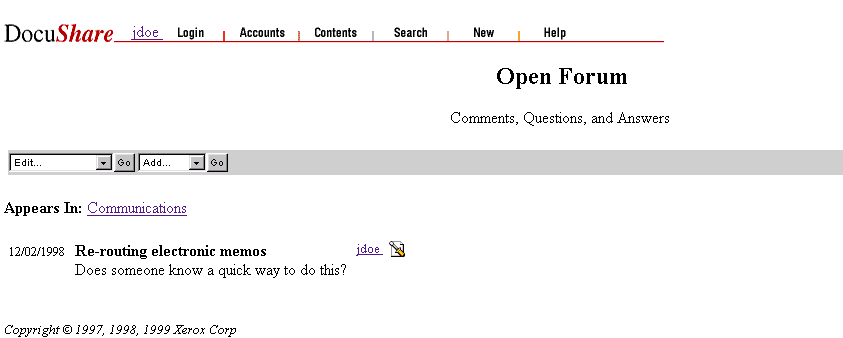
Users can add new bulletins to the bulletin board. These bulletins appear in reverse chronological order. Although bulletins have titles, DocuShare does not support threaded discussions within a bulletin board. Setting an expiration period for the bulletins ranging from one hour to two months to never can age a bulletin board. A bulletin board is considered a container object because they hold bulletin objects.
You can add a Bulletin Board to any collection in DocuShare to which you have at least Writer access permissions. However, you must be logged in to DocuShare to create a bulletin board.
To add a Bulletin Board:
The Add Bulletin Board page has the following properties:
|
Property |
Description |
|
Title |
Specifies a descriptive title for the bulletin board. The title can contain spaces and other punctuation marks. You should assign a meaningful title to the bulletin board. The default title is New. This is a required field. |
|
Summary |
(Optional) Specifies a brief description of the bulletin board. The contents of this field are displayed below the bulletin board title on the associated DocuShare collection page. You can use the Description field to provide a more detailed description of the bulletin board. |
|
Description |
(Optional) Specifies a detailed description of the bulletin board. The contents of this field are displayed below the bulletin board title and/or image on the DocuShare page. This field can contain HTML code to customize the bulletin board's appearance. |
|
Expiration |
Specifies when bulletin board entries are automatically archived. The default is Never. Archived items are no longer displayed on the main bulletin board. |
Note: There may be additional properties displayed on this page that are not listed here. They are specific to your DocuShare site. See your Site Administrator for details.
The bulletin board is created in DocuShare and the Services page for the bulletin board appears.
You can verify that the bulletin board was created by clicking the Appears In link to move you up one level in the collection hierarchy. The bulletin board should now be listed with a  icon. If you don't see the bulletin board, click Reload on your browser to refresh the page display.
Note: After creating the bulletin board, you should adjust the access permissions for the bulletin board to make sure they provide the desired level of access for other users and groups. See the section Viewing and Editing DocuShare Object Permission in Chapter 3 for more information on adjusting these permissions.
You can view the properties of a bulletin board at any time. You do not need to be logged in to view a bulletin board's properties. However, you must be logged in to DocuShare to perform any editing functions that can be accessed through the Bulletin Board Services page.
To access a bulletin board's Services page, click on the Services link to the right of the bulletin board in the collection listing. If you are in an open bulletin board, select View Properties from the Edit pull-down menu.
Bulletin board properties include:
All of these properties (except the object id, the creation/modification dates/times and bulletin board location) can be edited or modified by the owner of the bulletin board or a user with Writer access permissions through the Edit Properties function. Use the Edit Location function on main bulletin board pull-down menu to edit the Appears In property (bulletin board location).
The Bulletin Board Services page provides access to editing functions, using these selections in the pull-down menu:
You can edit the properties of a bulletin board at any time by selecting Edit Properties from the Edit pull-down menu. You must be the owner of the bulletin board or have Writer access permissions to edit a bulletin board's properties. You must also be logged in to DocuShare.
To edit the properties of a Bulletin Board:
Note: There may be additional, editable properties displayed on this page that are not listed here. They are specific to your DocuShare site. See your Site Administrator for details.
Only the owner of a bulletin board (the user who added it to DocuShare) or a user with Manager access for that bulletin board can delete a bulletin board from DocuShare. You must be logged in to DocuShare to delete a bulletin board.
To delete a bulletin board:
Note: If you change your mind about deleting this bulletin board, use the Back button on your browser to close the Delete or Confirm Deletion page.
The bulletin board is now deleted. You may need to Reload the page to see these changes.
The Edit Location command allows a user to move a DocuShare object from one location to another or allows the object to appear in multiple locations within the DocuShare repository. You must have at least Writer access to the object to change its location.
The location of an object is displayed in the Appears In property, which is displayed at the end of each Properties listing for an object. Using the Edit Location command allows you to edit the Appears In property.
This is a helpful command if you have created a Bulletin Board (or any other DocuShare object) in the wrong location and want to move it instead of deleting it and then re-creating it. It is also helpful if you would like the same object to appear in one or more additional locations. All DocuShare objects can appear in multiple locations at once. However, there is actually only one physical copy of the object in the DocuShare database; the system simply creates additional pointers or references to the object.
A negative side effect of this command is that if used incorrectly, you can orphan the object. Orphaned objects still exist within the DocuShare repository but are not accessible to users. Only a Site Administrator can recover orphaned objects.
To change the location of a bulletin board:
Note: Use caution when deselecting locations. Deselecting improperly can create orphaned files. Be sure that at least one location is selected in the scrolling list before selecting the Update Locations button.
The Services page for that bulletin board now appears and the new location(s) is/are displayed in Appears In. If you don't see this change reflected on the Services page, click Reload on your browser to refresh the page display.
You can add a Bulletin to any bulletin board in DocuShare to which you have Writer access permission. You must be logged in to create a Bulletin.
To add a Bulletin:
The Add Bulletin page has the following properties:
|
Property |
Description |
|
Title |
Specifies a descriptive title for the bulletin. The title can contain spaces and other punctuation marks. You should assign a meaningful title to the bulletin. The default title is New. This is a required field. |
|
Bulletin |
Contains your message or notice. This field can contain HTML code to customize the bulletin's appearance. |
Note: There may be additional properties displayed on this page that are not listed here. They are specific to your DocuShare site. See your Site Administrator for details.
The bulletin is created in the DocuShare bulletin board and the Services page for the bulletin appears.
You can verify that the bulletin was created by clicking the Appears In link to move you to the default bulletin board view. If you don't see the collection, click Reload on your browser to refresh the page display.
Note: After creating the bulletin, you should view the access permissions for the bulletin to make sure they provide the desired level of access for other users and groups. See the section Viewing and Editing DocuShare Object Permissions in Chapter 3 for more information on adjusting these permissions.
You can edit the properties of a bulletin at any time by selecting Edit Properties from the Edit pull-down menu on the bulletin's Services page.
You must be the owner of the bulletin or have at least Writer access permissions to edit bulletin properties. You must also be logged in to DocuShare.
To edit the properties of a bulletin:
Note: There may be additional properties displayed on this page that are not listed here. They are specific to your DocuShare site. See your Site Administrator for details.
You can view and delete expired bulletins in a bulletin board. Only the owner of an expired bulletin or a user with Manager access to the bulletin can delete the bulletin. You must be logged in to DocuShare.
To view and delete expired bulletins:
The bulletin is now deleted. You may need to Reload the page to see these changes.
Just as in other DocuShare objects, the Edit Location command allows a user to move a DocuShare bulletin from one bulletin board to another or allows the bulletin to appear in multiple bulletin boards within the DocuShare repository. There is only one physical copy of the bulletin in the DocuShare database; the system simply creates additional pointers or references to it.
You must have at least Writer access to the object to change its location. You must also be logged in to DocuShare.
The location of an object is displayed in the Appears In property, which is displayed at the end of each Properties listing for an object. Using the Edit Location command allows you to edit the Appears In property.
Editing the location of a bulletin assists in creating group or shared bulletin boards. You can create a bulletin in your own bulletin board and then edit its location to appear in your bulletin board and your workgroup's bulletin board.
A negative side effect of this command is that if used incorrectly, you can orphan the bulletin. Orphaned objects still exist within the DocuShare repository but are not accessible to users. Only a Site Administrator can recover orphaned objects.
To change the location of a bulletin:
Note: Use caution when deselecting bulletin board. Deselecting improperly can create orphaned files. Be sure that at least one location is selected in the scrolling list before selecting the Update Locations button.
The Services page for that bulletin now appears and the new location(s) is/are displayed in Appears In. If you don't see this change reflected on the Services page, click Reload on your browser to refresh the page display.
|
|
|
| Table of Contents | DocuShare URLs | Searching in DocuShare |