9. Searching in DocuShare
Overview
DocuShare Search Page
Logical Operators
Reserved Characters
Every DocuShare object contains a set of associated attributes, which are sometimes also referred to as meta-data. These attributes include the object's title, summary, owner, description, creation date, and keywords. For most objects, such as collections and bulletin boards, this set of attributes is the object's complete information content. File objects, in addition, contain the user's original file in its original format. Whenever a new object is created, or an existing object is edited, it is indexed by DocuShare at that moment and made available for searching. For most office documents, like Word, Excel and WordPerfect, their content is indexed in addition to their meta-data attributes. Your site administrator can tell you which file formats are currently being indexed on your server. For document content and every object’s title, summary and description, the DocuShare search facility analyzes each word and indexes it in a way that enables you to find all variants of the word. This is known as stemming. For example, DocuShare’s powerful stemming capability will locate the words "bath", "baths" and "bathes" when you request the word "bath".
DocuShare allows you to submit queries from two locations.
- Simple keyword-style queries may be issued from the DocuShare home page by typing one or more words into the form and clicking on the Search button. It will return all objects that have those words in any of their attributes, including file content.
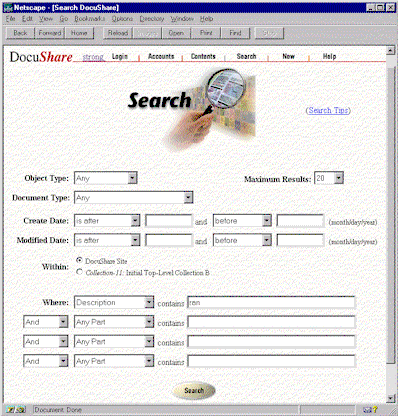
- Powerful structured queries may be issued from the DocuShare Search page. It allows you to construct queries about specific attributes, for objects located within a given collection and created during a limited interval of time.
The results of your query are returned as a collection-style listing. One notable difference is that links to the collections in which each object appears are included. This enables navigation to the related context of a query in addition to the specific objects that satisfied the query.
The DocuShare Search page allows you to build up sophisticated queries by selecting the desired constraints and attribute values from a set of form categories. The constraints imposed by the different categories are combined by multiple AND conjunctions to form the query. Within the Where category, you can use logical operators to build up queries about different object attributes. For example, the following is a valid query:
- Document Type
is application/msword, and
- Create Date
is after 1/1/97, and
- Where
Title contains "market research" or Keywords contains "partners"
-
- Object Type
- This pull-down list allows you to limit the search to a specific type of object, such as collections or files only. Selecting the special value Any allows you to search over all objects in the repository.
- Document Type
- This field applies to File objects only and lists all of the MIME Types currently supported by your server. It allows you to limit search to a single type of file, such as only Word or PDF documents. The Document Type constraint is combined with the Object Type constraint by an AND conjunction. If Object Type is set to Any, selecting a value for Document Type will automatically limit the search to objects of type File. If Object Type is set to an object type other than File, selecting a value for Document Type will lead to an empty result because non-files do not have a Document Type attribute.
- Create Date
- Allows you to search for content that was first created before or after a specified date, or within a specified date interval. To search for content created before or after a specific date, enter the date into one of the Create Date fields, select the appropriate relationship (before, after, on, etc.) and leave the other field blank. To search for objects created within an interval of time put the interval start and end dates in the two Create Date fields and select the appropriate relationships.
- Modified Date
- Allows you to search for content that was last modified before or after a specified date, or within a specified date interval. To search for content that was last modified before or after a specific date, enter the date into one of the Modified Date fields, select the appropriate relationship (before, after, on, etc.) and leave the other field blank. To search for objects that were last modified within an interval of time, put the interval start and end dates in the two Modified Date fields and select the appropriate relationships. When using the Modified Date attribute, keep in mind that when an object is first created, its modified date equals its create date.
- Within
- The Within category only appears on the form if you clicked on Search while viewing a collection or its properties. It is used to limit search to only that collection and all of the content it contains. A radio button is used to select between two possible values. By default, the location constraint is selected. Selecting the radio button value for Site removes the location constraint and searches over the entire repository.
- Where
- The Where category allows you to use logical operators to build up queries about specific attributes, including file content. Selecting Any Part as the attribute value means that that part of the query will return true if the specified value appears in any of the object's attributes.
- Maximum Results
- Specifies the maximum number of objects to return. Results are always sorted, with the highest match score first. Therefore, setting maximum results to 20 returns the 20 best matches to your query.
-
The queries that DocuShare builds based on your input are given to the Verity search engine. Verity defines the four logical operators used in the Where category of the DocuShare Search page as follows.
- AND
Searches for objects that contain all of the search elements you specify. The results are relevance-ranked. For example, the query:
Title contains marketing And Keywords contains technology
only returns objects having both "marketing" in their title and "technology" in their keywords.
OR
Searches for objects that contain at least one of the search elements you specify. The results are relevance-ranked. For example, the query:
Title contains marketing Or Keywords contains technology
returns objects having either "marketing" in their title or "technology" in their keywords, or both.
ACCRUE
Searches for objects that include at least one of the search elements you specify. The ACCRUE operator scores results in a cumulative fashion - the more search elements found, the better the score. For example, the query:
Title contains marketing Accrue Keywords contains technology
returns objects having either "marketing" in their title or "technology" in their keywords. Object having both elements will be given a higher score.
AND NOT
Searches for objects that do not include the search elements you specify. You can use AND NOT to exclude documents, often in an attempt to reduce known sources of noise in the search results. For example, the query:
Title contains marketing And Not Keywords contains technology
returns objects that have "marketing" in their title but do not have "technology" in their keywords.
When you define a query using the logical operators, DocuShare groups the individual parts of the query using the following precedence rules:
- The NOT operator, as in AND NOT, always applies only to the next input string.
- The AND operator has the highest grouping priority below NOT.
- The ACCRUE operator has the highest grouping priority below AND.
- The OR operator has the lowest grouping priority.
For example, the query:
Where title contains test OR title contains practice AND summary contains homework
Is interpreted by DocuShare to mean:
(title contains test) OR ((title contains practice) AND (summary contains homework))
Objects containing "test" in their title will be returned, as will objects containing "practice" in their title and "homework" in their summary. Objects that contain "practice" in their title but do not contain "homework" in their summary will not be returned.
Some characters are used by the Verity search engine for internal functions or to denote wildcard patterns in your query.
Wildcard Characters
|
Character |
Function |
|
? |
Specifies one of any alphanumeric character, as in ?an, which locates "ran", "pan", "can", and "ban". |
|
* |
Specifies zero or more of any alphanumeric character, as in corp*, which locates "corporate", "corporation", "corporal", and "corpulent". Do not use an asterisk (*) to specify the first character of a wildcard string. |
To use a wildcard character as a query string literal, precede it with a backslash ( \ ). For example, to search for "x*y", enter x\*y.
Special Characters
The following characters have special meaning to the Verity search engine and will not be treated as literals in a query string:
- comma ,
- left and right parentheses ( )
- double quotation mark "
- backslash \
- at sign @
- left curly brace {
- left bracket [
- less than sign <
- backquote '
- equals =
- dash –
- caret ^
- pound #
- exclamation point !
These special characters are typically ignored and treated as a space in searching.
Copyright © 1997, 1998, 1999 by Xerox Corporation. All Xerox product names mentioned in this document are trademarks of Xerox Corporation. All other product names mentioned in this
document are trademarks of their respective companies.


